Search
Search by exhibit ID
Refine search results for items that use the same exhibit, or perform a general search for all items with exhibits.
- Select Exhibit ID from the menu next to the search bar.
- Click Yes in the prompt to acknowledge that the currently displayed search columns will be updated. This is because you cannot filter search results or define custom views for an exhibit ID search.
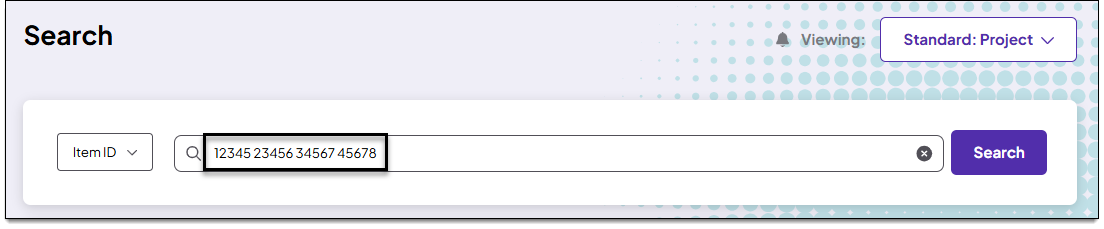
- In the Search bar, input one or more exhibit ID numbers. Separate each ID with a single space as shown in the example below. To search for all items in the project that use exhibits, simply leave the search bar empty/do not input any IDs.
- Press Enter on your keyboard or click Search.
- While the search is loading, you can click Cancel to stop the in-progress search.
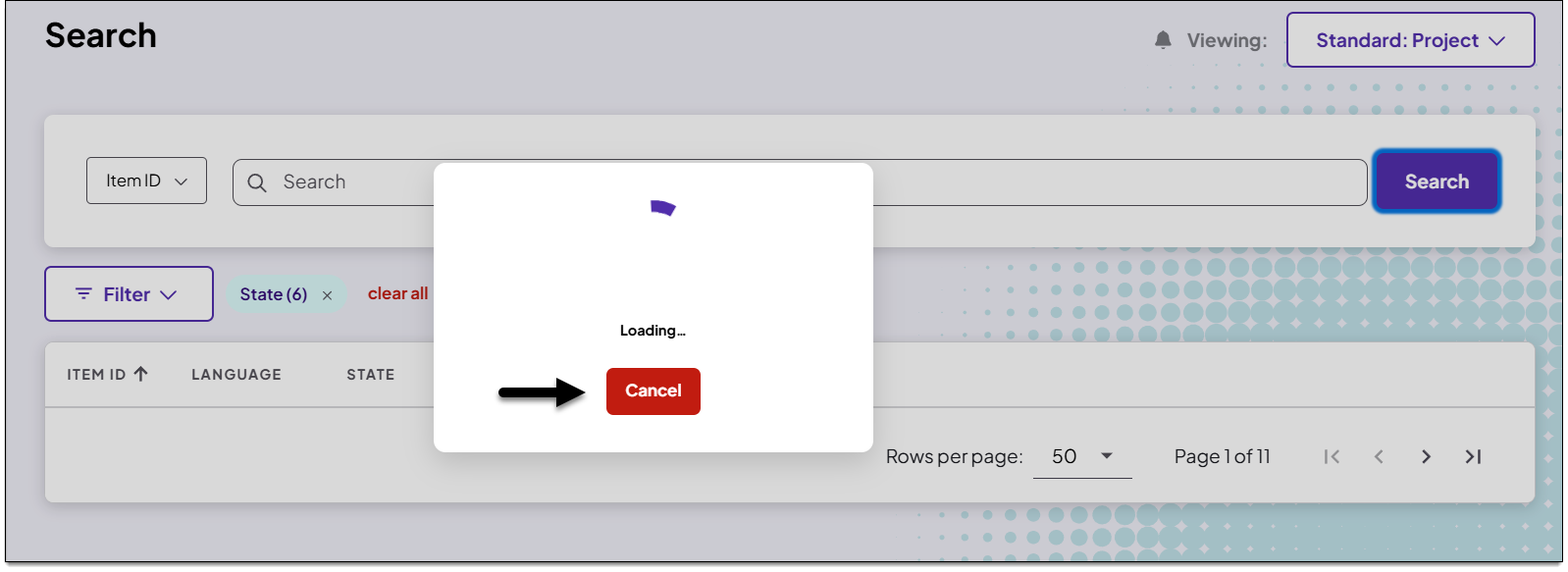
- While the search is loading, you can click Cancel to stop the in-progress search.
- The search results return any items that use the exhibits you specified (or any items that use exhibits if you did not search for specific exhibit IDs).
 The Exhibit type column identifies whether each exhibit is configured as a popup or a split screen.
- If the Exhibit reference column is added to your search view, this shows the IDs of all exhibits that are referenced in the item and how each exhibit is used (split screen or popup).
- You can now open an item or batch of items in the item editor, or clear the criteria and start a new search. See Getting around the Search page for more information.